 Pocket Wombat

Guide
Interstitial journaling on iPhone
Updated 13 November 2026, for Pocket Wombat 1.3
Interstitial journaling means writing a line or two every time you switch tasks: what you just finished, how it went, and what’s next. On iPhone it only sticks if two things are true: writing a line takes seconds, and the time is stamped for you. Here’s how to do it with Pocket Wombat, and with the apps you already have.
What interstitial journaling is
The idea was popularised by Tony Stubblebine in a 2017 Better Humans post. Instead of one long entry at the end of the day, you write in the gaps (the “interstices”) between tasks. Each entry is short and timestamped. Over a day it becomes a log of what you actually did, which is often different from what the to-do list said.
A morning might look like this:
Inbox done. Starting the budget draft. Feeling slow.
Budget half done; stuck on travel costs. Switching to email so I don’t stew.
Back on the budget. Asked Sam for the travel numbers.
Lunch. Need a quieter afternoon.
The point isn’t the writing; it’s the pause. Naming what you’re leaving and what you’re starting makes it easier to drop the last task and pick up the next one.
Three ways to do it on iPhone
1. Apple Notes
One note per day, one line per switch. It’s free and always there, but you type every time yourself, and the note doesn’t know what was in your calendar.
2. An app made only for this
A few small App Store apps now do just interstitial journaling: you type a line and it’s timestamped. Search the App Store for “interstitial journal”. They’re good if you want nothing else.
3. Pocket Wombat
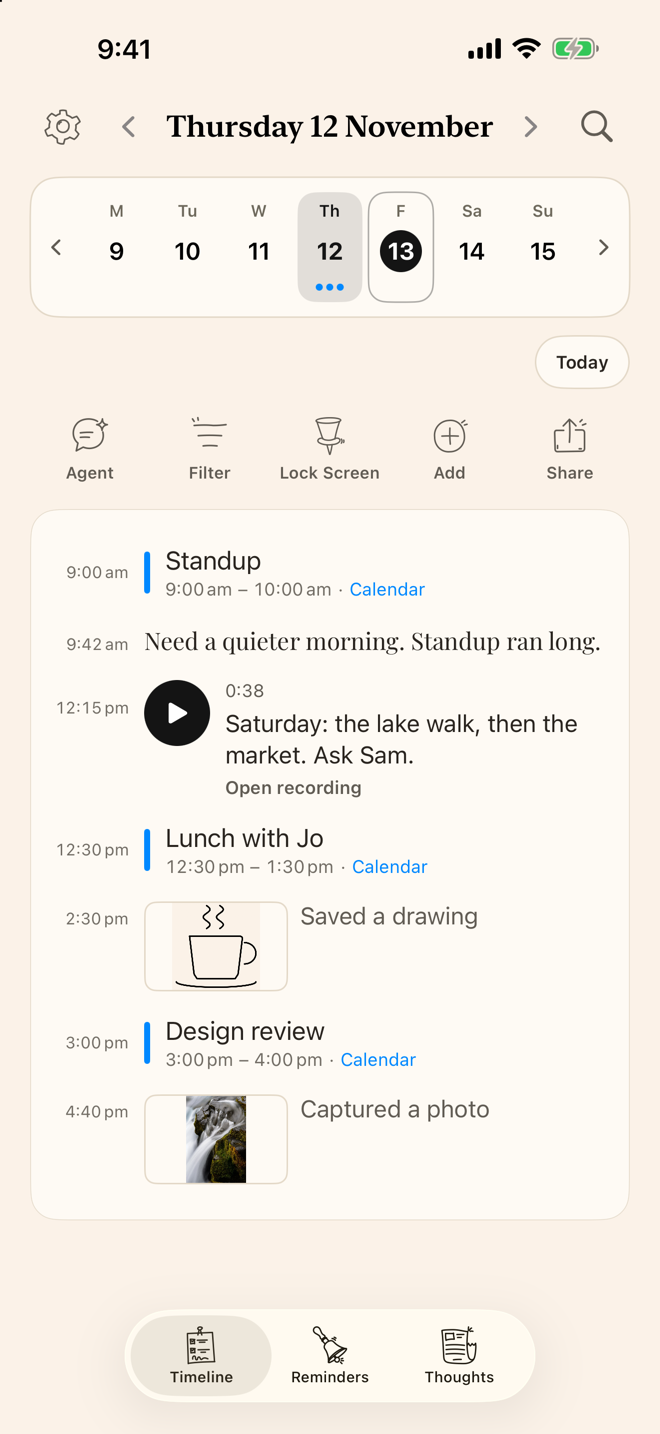
Pocket Wombat is a daily log where every entry is stamped with the real time and lands on a timeline next to your Calendar events and the reminders you finish. That fits interstitial journaling well: your meetings mark the edges of the gaps, and your lines fill them in.
How to do it in Pocket Wombat
- Connect Calendar and Reminders on first launch (or later in Settings → Calendars & Reminders), so your schedule is on the timeline.
- At each switch, write a line. Open Thoughts and write one or two sentences. Walking between things? Record your voice instead; a transcript joins the timeline when your iPhone can recognise speech on-device.
- Pin what you’re doing now. Pin puts one typed line on your Lock Screen, in the Dynamic Island and in StandBy, so the task you started stays in front of you. It unpins when the day changes.
- Tick off tasks where you log. Complete a reminder in the Reminders tab or on Timeline and its record stays on Timeline, between your lines, so the log shows what you finished as well as what you wrote.
- Capture without opening the app. On iOS 18 and later, the Add to timeline shortcut runs in the background: say “Log to Pocket Wombat” to Siri, or run it from the Shortcuts app.
- Close the day. With the Unlock, ask Ask Agent to summarise the day, or what’s still open. It reads your log and reminders, can create a reminder for a follow-up (with Undo), and proposes other reminder changes for you to tap. It uses Apple Intelligence where available, or a Claude, OpenAI or OpenRouter key of your own.
- Read it back. Filter → Thoughts shows only what you wrote, without the calendar rows.
Limits worth knowing
- It isn’t a time tracker. There are no timers, durations or weekly reports. If you want those, an app made for interstitial journaling plus time tracking fits better.
- Pin takes typed lines only, not sketches, voice notes or calendar rows.
- Voice transcripts need on-device speech recognition for your language; otherwise you keep the recording.
- No sync. The log stays on the iPhone or iPad you wrote it on; share or email a day as plain text for a copy.
- Free for the last week: today, the last 7 days and anything ahead are free. Older days and Ask Agent need a one-time Unlock; nothing is deleted. iPhone and iPad, iOS 17 or later.
Pocket Wombat stamps every line with the time and puts it next to your calendar. Free to try, unlock once. No account.

More guides
- Journal apps for iPhone with no subscription (2026)Free apps, one-time upgrades and paid-once journals, with prices checked on the App Store.
- A journal app that shows your calendarCalendar events, reminders and what you wrote, on one timeline for the day.