 Pocket Wombat
Guide
A journal app that shows your calendar
Updated 13 November 2026, for Pocket Wombat 1.3
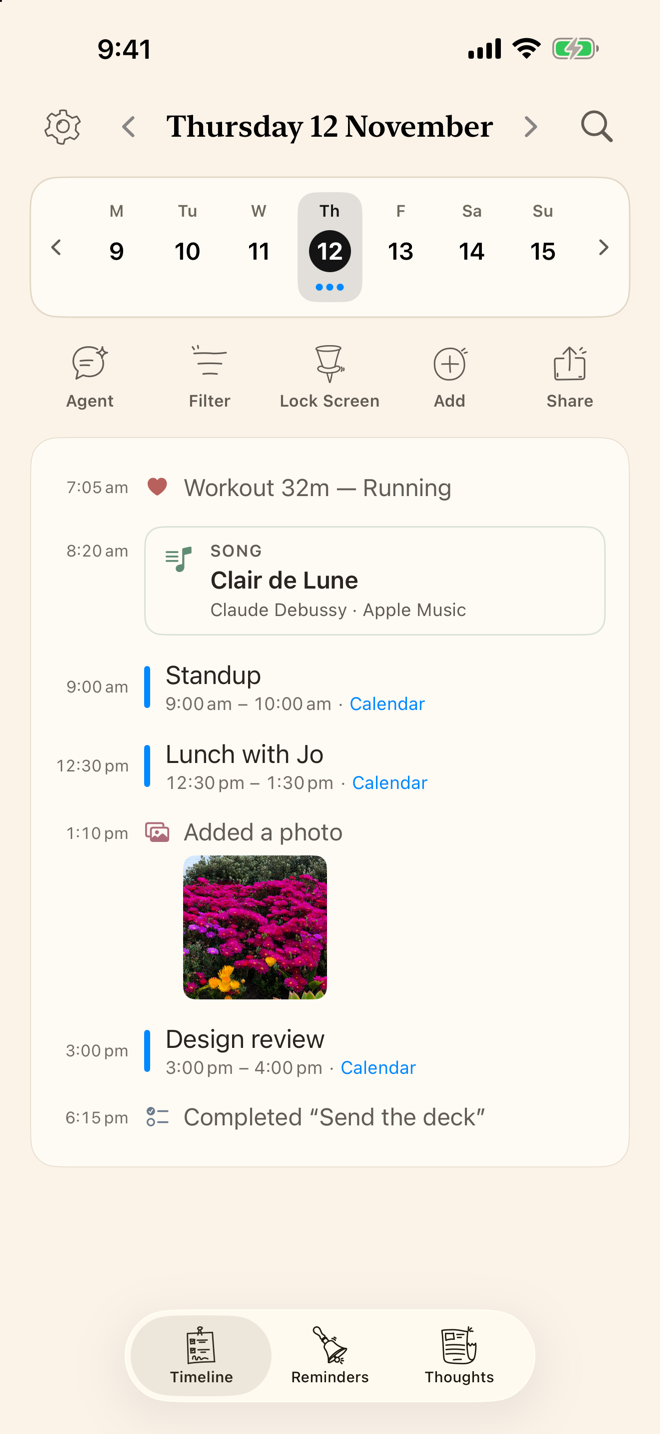
Most journal apps have a calendar for finding old entries. Far fewer show what was actually in your calendar that day. On iPhone, Pocket Wombat puts your Calendar events and due Reminders on the same timeline as what you write, in time order, so each day’s entry is already half there when you sit down at night.
Two things “calendar” can mean in a journal app
A calendar view of your entries. You tap a date and see what you wrote. Apple’s Journal app lets you find past entries using a calendar, Day One has a calendar view, and Diarium has calendar, timeline and map views. This is the common one, and it’s good for seeing which days you wrote.
Your schedule inside the journal. The meetings, appointments and reminders from Apple’s Calendar and Reminders apps sit next to your own words, so you can see what you were doing when you wrote something. Diarium can add calendar events to an entry as extra context. Pocket Wombat is built around this: the day’s schedule is the page you write on.
How to set it up in Pocket Wombat
- Allow Calendar and Reminders. The last card on first launch asks; tap Connect. If you tapped Not now, go to Settings → Calendars & Reminders and tap Connect there.
- Open Timeline. Today’s events and due reminders appear in time order. Upcoming items sit in place but stay quiet until their time. Hide any calendar or list you don’t want in Settings → Calendars & Reminders.
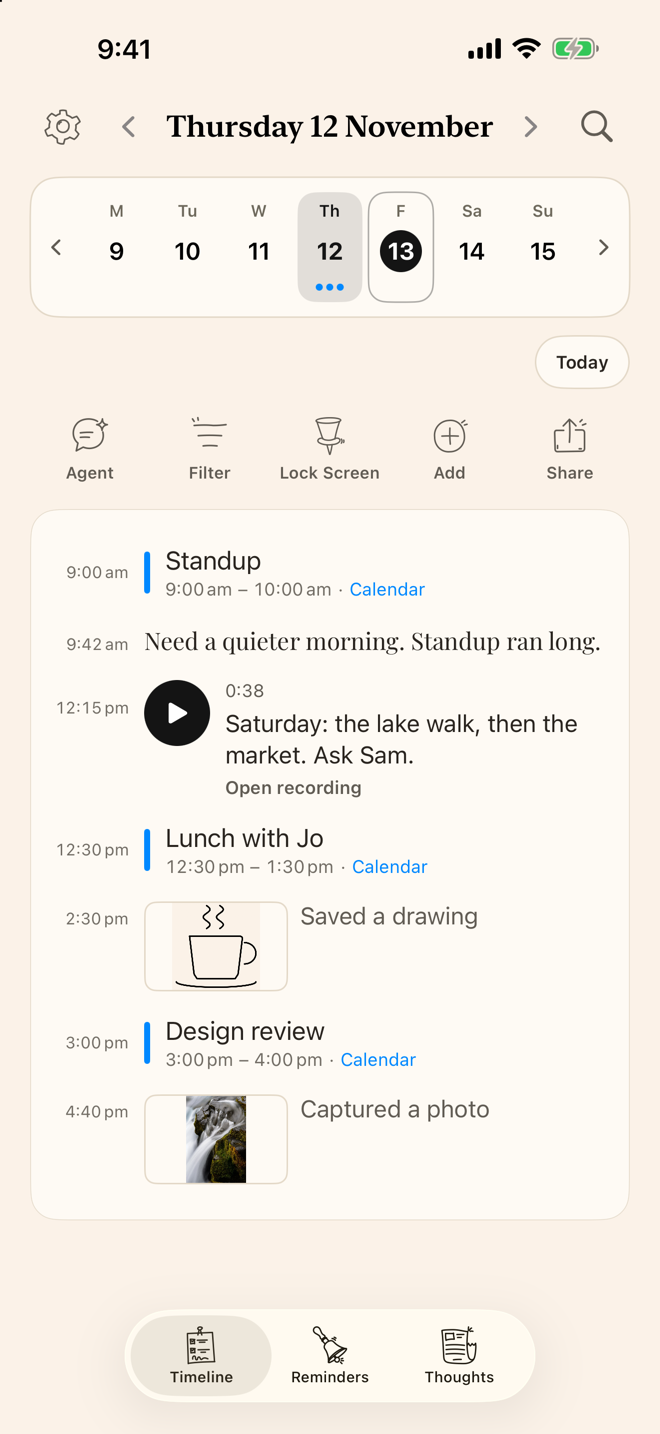
- Write between them. Open Thoughts and write, record your voice, sketch or take a photo. Each entry lands on the timeline stamped with the real time, next to the meeting it was about.
- Add to your calendar from the log. Timeline → Add makes an event or a reminder for that day, and you choose which calendar or list it goes to. A reminder can fire when you arrive at or leave a place. Tap a reminder’s circle to complete it.
- Keep a done list. The Reminders tab shows your Apple Reminders as overdue, today, the next 7 days, later and anytime, with date, list and section in one quick-add row. Finish a reminder in Pocket Wombat and its record stays on Timeline; reminders completed in other apps don’t add a Pocket Wombat entry.
- Look back. Tap a day on the week strip, swipe between weeks, or open the month picker to jump to any day. Tap the magnifier to search every day, and filter to thoughts, voice, photos, Ask Agent or reminders.
- Optional: ask about your days. With the Unlock, Ask Agent can summarise a day or answer a question from your calendar, reminders and what you wrote. It uses Apple Intelligence where available, or a Claude, OpenAI or OpenRouter key of your own. With a cloud key, what it reads goes to that provider.
Doing it without a dedicated app
You can get close with what’s already on your iPhone: open Calendar, look at the day, and write about it in Notes or Apple’s Journal app. It works, but the two never meet, so a month later the note doesn’t tell you what else was happening. Putting both on one timeline is the whole reason to use an app for this.
What it won’t do
- It doesn’t keep a second calendar. Events and reminders stay in Apple’s Calendar and Reminders apps; Pocket Wombat shows them and can add to them.
- Google or Outlook calendars show up only if that account is already added to your iPhone’s Calendar app.
- No sync. Your log stays on the iPhone or iPad you wrote it on. Share or email any day as plain text when you want a copy elsewhere.
- iPhone and iPad only, iOS 17 or later. There’s no Mac, Android or web version.
- Free for the last week: today, the last 7 days and anything ahead are free. Older days and Ask Agent need a one-time Unlock, with no subscription; nothing is deleted.
Daily Log - Pocket Wombat is a lifelog, voice and photo diary for iPhone and iPad. Calendar, finished reminders and your own words on one timeline. Free to try, unlock once. No account.

More guides
- Journal apps for iPhone with no subscription (2026)Free apps, one-time upgrades and paid-once journals, with prices checked on the App Store.
- Interstitial journaling on iPhoneA line or two each time you switch tasks, stamped with the time, between your meetings.